
In September 2025, we launched object tracking in Edge Impulse, a post-processing layer that turns per-frame detections into persistent object IDs, directly on your device. We built it with conveyor belts in mind: parts moving at a steady speed, in one direction, past a fixed camera. It is designed for that use case, but plenty of scenes don't look like a conveyor belt.
Today, object tracking gets a second option: a lightweight, general-purpose algorithm for objects that speed up, slow down, and change direction. It's available to all users, including the free Developer plan. The original linear tracker stays supported, and you pick the one that fits your scene.
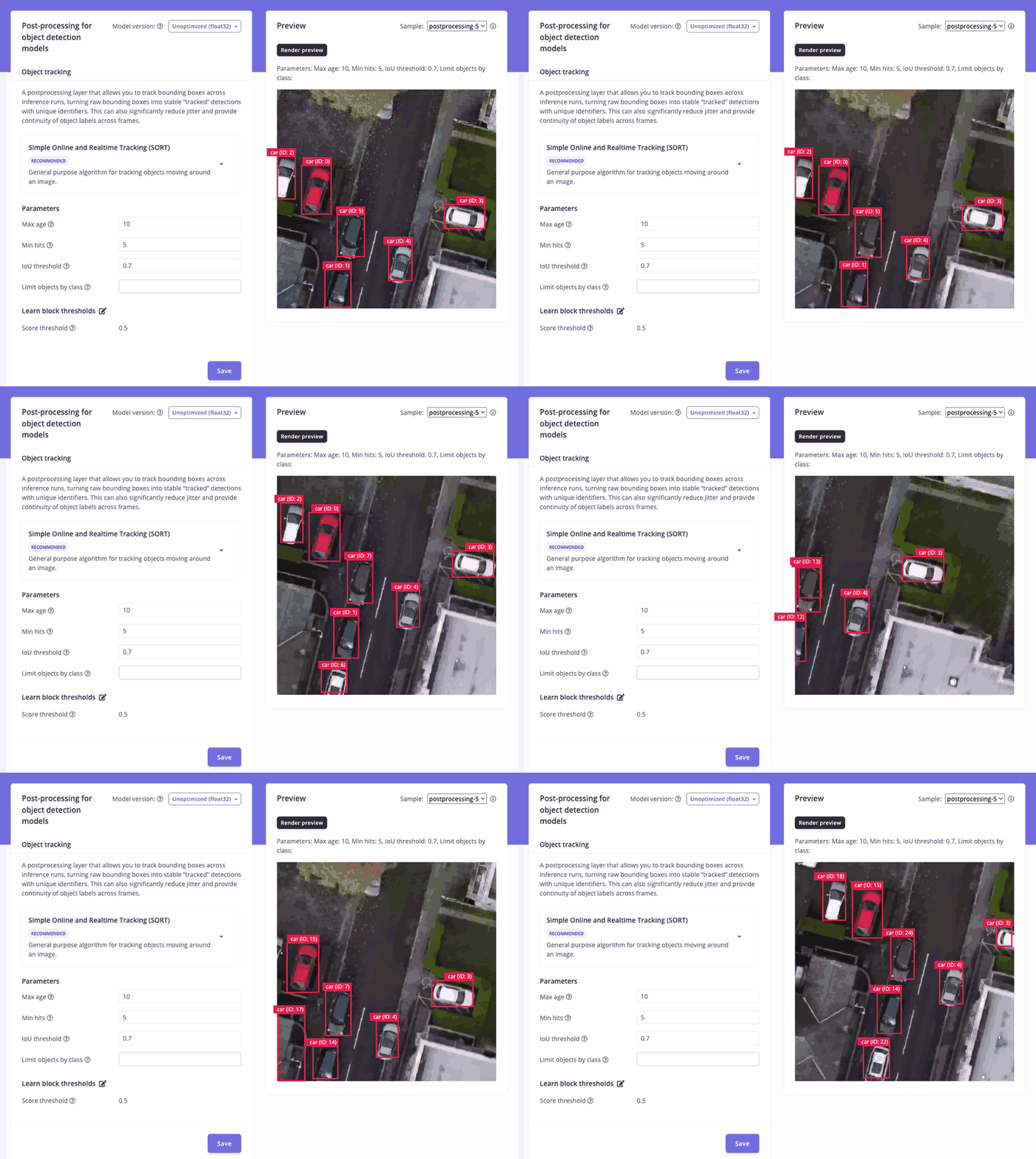
When objects don't move in straight lines
An object detection model looks at every frame in isolation. It can tell you there are three people in this frame, but not whether they're the same three people as in the last frame. Object tracking adds continuity that can support applications such as counting objects, estimating dwell time, or triggering an event when an object crosses a line.
Keeping that continuity is harder when motion is irregular: shoppers wandering through an aisle, forklifts turning in a warehouse, animals moving around a pen, or a robot arm moving parts in arcs. The general-purpose tracker is designed for these scenes, so you don't have to build and maintain your own tracking framework to cover them.
How the general-purpose tracker works
The new algorithm is based on SORT (Simple Online and Realtime Tracking), introduced by Alex Bewley and collaborators in a 2016 paper. For each new frame, the tracker:
- Predicts where each tracked object should be, using a Kalman filter that estimates the object's position, size, and velocity.
- Matches new detections to those predictions, using bounding box overlap (intersection over union, or IoU) and an optimal assignment step.
- Updates matched tracks with the new detection, so each track's motion estimate keeps adapting as the object changes speed or direction.
- Manages track lifecycles: unmatched detections start new tracks, and tracks that go unmatched for too long are closed.
SORT works on bounding boxes and doesn't run a second neural network for appearance features, which helps limit computational overhead for supported edge-device deployments.
Which tracker should you use?
Neither algorithm is better across the board. Your scene, your detector, your camera setup, and your performance requirements all play a part. Start from how your objects move:
The Post-processing page provides tools for comparing the algorithms: upload a few videos from your deployment environment, switch algorithms, and render a preview of each.
What the tracker does and doesn't do
The general-purpose tracker is a component that operates on your model's detections. A few things to keep in mind:
- It doesn't detect or classify objects. Tracking quality depends on your object detection model, so improvements in detector performance may improve tracking results.
- It doesn't re-identify objects. If an object is occluded for a long time or leaves and re-enters the scene, it will likely get a new track ID. The tracker doesn't use appearance features or identify specific people or vehicles.
- It covers a single camera. Multi-camera tracking isn't supported.
- It gives you tracks, not a finished application. You'll still write the logic for your use case, such as where your counting line sits and how to handle objects entering or leaving the frame.
Get started
If you've used object tracking before, the workflow is the same:
- Train an object detection model in Studio.
- Upload a few test videos (no labels needed) in Data acquisition > Post-processing.
- Open Post-processing in the left navigation, select Simple Online and Realtime Tracking, and tune the parameters.
- Click Save, then Render Preview to check the tracks on your videos.
- Deploy. For supported targets, tracking is included in the generated deployment, including the Linux EIM, C++ library, and WebAssembly targets.
For parameter details and how to read tracking results on each target, see the object tracking documentation.
Try it on your own video
The general-purpose tracker gives you a new option for the scenes where motion The general-purpose tracker gives you a new option for the scenes where motion gets less predictable, and the linear tracker is still there for the scenes where it doesn't. Grab a video from your deployment environment and compare how each option tracks objects in your use case.
Ready to try it? Sign up for a free Developer plan account and follow the object tracking documentation.
Join us in the Edge Impulse forum, our Discord server, or tag us on social media — we'd love to see what you're building.